Snapflow and the tools teams use today
Most tools help you take a screenshot. Fewer keep the ones already in your help center matching the product. What each of these is for, what it costs, and where Snapflow fits, with every fact checked on their own sites.
Feature by feature
What each tool does for a help center that already exists, and what it does that Snapflow doesn't. Each tool's page has the reasons behind every mark.
| Feature | Snapflow | LaunchBrightly | Scribe | Tango | Snagit | Guidde |
|---|---|---|---|---|---|---|
| Keeping your help center current | ||||||
| Retakes screenshots on its own when the product changes | Yes: After each release or on a schedule | Yes: Replays each recipe on a schedule | No: Recorded again by hand | No: Captured again by hand | No: Captured again by hand | No: Edited or recorded again |
| Nothing to record for each screenshot | Yes: Works out each one from the article | No: A recipe recorded per screenshot | No: You click through each process | No: You click through each workflow | No: You take each one | No: You record each workflow |
| Keeps working after a redesign, with nothing to fix | Yes: Finds the screen again from the article | Partly: A recipe can lose its element and need fixing | No | No | No | No |
| Updates the images in the articles you already have | Yes: Added once, by a permanent address | Yes: Syncs to your help center | No: Makes its own guides to embed or export | No: Makes its own guides to share or embed | No: Uploaded again by hand | No: Makes its own video guides |
| Setup and privacy | ||||||
| Nothing to install | Yes: Needs a demo account, nothing else | Yes: Records in a browser inside LaunchBrightly | No: Browser extension or desktop app | No: Browser extension or desktop app | No: Desktop app | No: Browser extension, desktop or mobile app |
| Keeps private data out of screenshots automatically | Yes: Hides the elements you choose, on every retake | Yes: A recipe can hide elements | Partly: Automatic redaction on Enterprise | Partly: Automatic detection on Enterprise | Yes: Smart Redact | Partly: Automatic redaction on Enterprise |
| Making new guides | ||||||
| Turns a recording into a step-by-step guide | No: Works on articles that already exist | No | Yes | Yes | Yes: Step Capture | Yes: As a narrated video |
Checked on each tool's own site on
What makes Snapflow different
Most of these tools help someone take a screenshot. Snapflow takes the person out of keeping them current.
It starts from your articles
Snapflow reads each article and works out what its screenshots should show from the text and the old image. There's no recipe, recording or script per screenshot.
A redesign doesn't break it
There's no recorded path to go stale. When a menu moves or a button is renamed, it finds the screen again from what the article says. When it can't, it tells you why.
Your articles update themselves
Each screenshot has a permanent image address: add it to the article once and the picture behind it updates. In Intercom and Zendesk, Snapflow can put it in for you.
Nothing goes live without you
A retaken screenshot waits next to the live one until someone makes it live. Or switch on publishing straight away, with every earlier version a click away.
Your style on every screenshot
The frame, arrows and boxes your help center uses are added on every retake, so screenshots taken a year apart still look like they belong together.
Priced by screenshot, not by seat
500 screenshots a month for $79, with as many people as you like. Support, docs and product can all review without buying another licence.
See it on your own help center
The free audit dates every screenshot and shows which are out of date. About five minutes, no account.
Built to keep screenshots current
The other tool made for the same job as Snapflow.
Guide and walkthrough tools
Record a process once and share it as a guide or a video.
Snapflow vs Scribe
Scribe turns a process you click through into a step-by-step guide. Snapflow keeps the screenshots already in your help center current. Which fits what.
Checked on
Snapflow vs Tango
Tango captures workflows as guides and walks people through your product. Snapflow keeps the screenshots in your help center articles current.
Checked on
Snapflow vs Guidde
Guidde turns a workflow into a narrated video guide. Snapflow keeps the screenshots in your help center articles current. How they differ.
Checked on
Screenshot tools
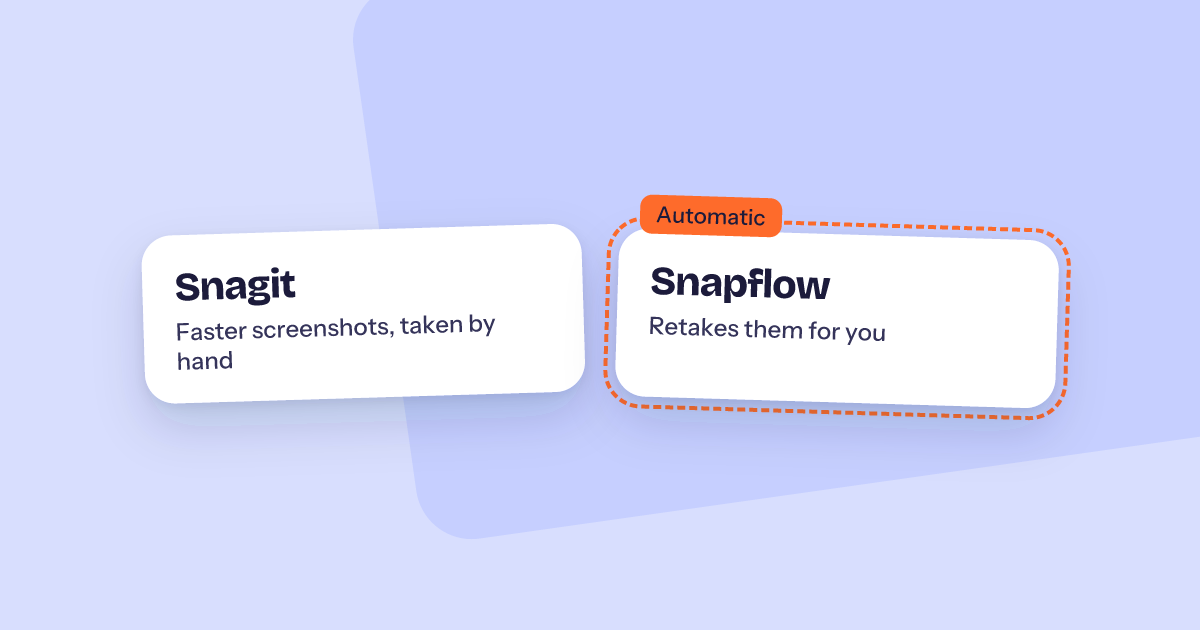
Take and mark up screenshots by hand, faster.
How we write these comparisons
- Every fact about another tool comes from its own site, and each page links to the pages it used.
- Each page shows the date those sites were read. Prices are the list prices on that day.
- Where the other tool does something better, or something Snapflow doesn't do at all, the page says so, and the table marks it.
- If something has changed since, tell us and we'll correct it.
Questions about help center screenshot tools
Prices and features as listed on each tool's site on 19 November 2026.
What tools can automate help center screenshots?
Two tools are built for it: Snapflow and LaunchBrightly. Both retake the screenshots in an existing help center when the product changes. Capture tools such as Scribe, Tango, Snagit and Guidde make taking a screenshot or guide faster, but a person still retakes it by hand and replaces it in each article.
What is the best LaunchBrightly alternative?
Snapflow is the closest one: both keep help center screenshots current on their own. LaunchBrightly replays a recipe recorded for each screenshot; Snapflow reads each article and finds the screen from what it says, so there's nothing to record or repair. As of 19 November 2026, 500 screenshots a month cost $79 on Snapflow and $229 on LaunchBrightly.
How is Snapflow different from Scribe, Tango or Guidde?
Scribe, Tango and Guidde turn a process you click through into a new guide or video. Snapflow works on the help center you already have: it reads each article, retakes its screenshots from your product after each release or on a schedule, and updates the article. Many teams write new guides with one of them and keep them current with Snapflow.
How do I keep help center screenshots up to date?
First find which ones are out of date: Snapflow's free audit dates every screenshot in your help center in about five minutes. Then either retake them by hand after each release, with a capture tool to speed it up, or have a tool like Snapflow retake them on a schedule and hold each new one for your review.
How much do help center screenshot tools cost?
As of 19 November 2026: Snapflow is $79 a month for 500 screenshots or $199 for 2,000, with unlimited people. LaunchBrightly is $229 and $499 for the same. Scribe, Tango and Guidde charge per seat, user or creator, from $13 to $59 a month, and Snagit from €39.56 a user a year.
Which help centers does Snapflow work with?
Any help center where an article can show an image from a web address, including Intercom, Zendesk, HubSpot, Freshdesk and custom sites. Each screenshot has a permanent image address, so it's added once and updates itself. Snapflow can also put screenshots straight into Intercom and Zendesk articles.
Do I need to install anything or change my product's code?
No. Snapflow needs your help center's address and a demo account that signs in to your product with a username and password. There's no browser extension, desktop app or code to add, which sets it apart from capture tools and from tools that rely on attributes in your HTML.
What can't Snapflow do?
It doesn't make new guides or videos from a recording; it keeps existing articles current. It only reaches web apps a demo account can sign in to with a username and password, so not single sign-on, two-factor or desktop software yet. And it never completes an action it can't undo while taking a screenshot.
Stop retaking screenshots by hand
Whatever you use today, the slow part is the same: noticing a screenshot is out of date, retaking it and replacing it in every article. Snapflow does all three, after every release.
Rather see it first? Book a demo
What you get when you start
- A free audit of every screenshot in your help center, in about five minutes
- Your first 10 screenshots taken for you, without a card
- Nothing to install and no code to change: a demo account is enough
- Then $79 a month for 500 screenshots, with unlimited people
$79
500 screenshots a month on Snapflow
$229
The same on LaunchBrightly, as of 19 November 2026